von Thimo Hofner

Dynamic remarketing shows your store visitors exactly the products they have previously viewed – automatically, personalized and directly from your product feed.
This is a no-brainer for e-commerce. But: for it to work, you need a clean setup.
In this article, I’ll show you how to set up dynamic remarketing correctly from a technical perspective – with Google Tag Manager, a well-maintained feed and the right data layer structure.
Prerequisite: Dynamic remarketing in Google Ads requires a complete product feed with ID, title, image, price and availability in the Google Merchant Center.
Data layer: The product data is provided in the data layer via an items array, whereby the product ID must match the ID in the product feed exactly so that Google can assign the appropriate products for dynamic ads.
Tracking: The remarketing tag is set up in Google Tag Manager and transfers the items and optional value parameters to Google Ads when an event is triggered so that user activities can be recorded correctly and suitable product ads can be displayed.
Of course, I’ll go into more detail in the post and you’ll find everything you need to know. Here is an overview:
By the way, if you want, you can also check out my Video on this:
Dynamic remarketing automatically shows your visitors exactly the products that they have previously viewed in your store – including the image, title and current price.
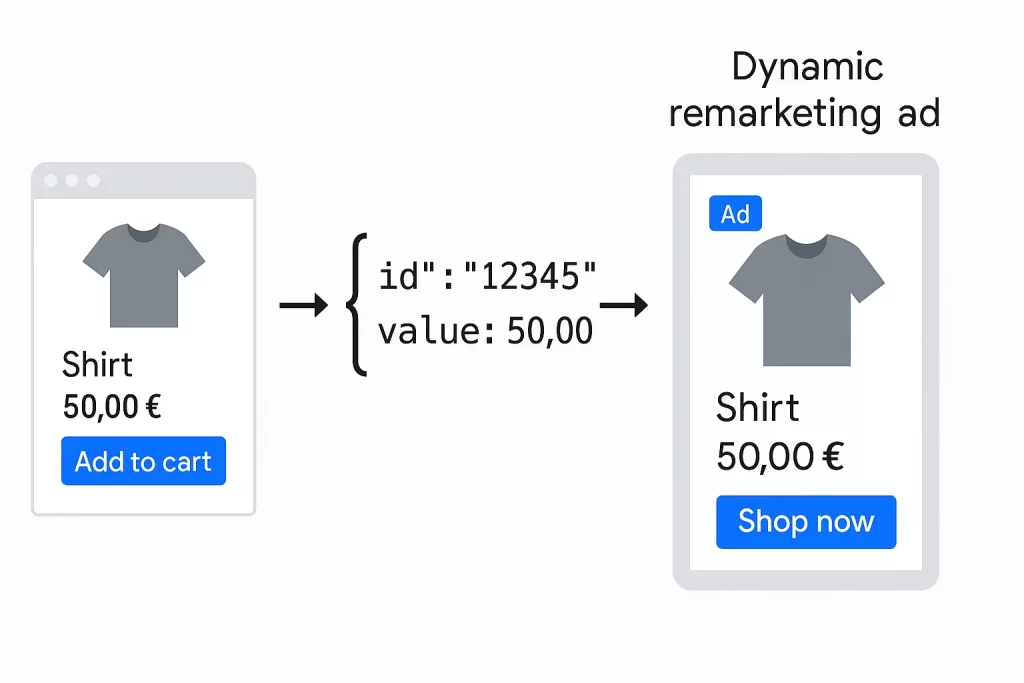
In contrast to classic remarketing, where all users see the same ad, Google pulls the content directly from your product feed. The result: personalized ads that perform significantly better.
Dynamic remarketing is extremely effective in e-commerce – especially when it comes to bringing back shopping cart abandoners or prospective customers.
What many people don’t know: A clean remarketing setup is not only important for your own remarketing campaigns, but also for all Performance Max campaigns. This is because PMax also uses this data automatically if the feed and tags are integrated correctly – regardless of whether you actively control this or not.
Here you can find more information about Performance Max campaigns.
The product feed is the heart of every dynamic remarketing campaign. This is where Google pulls all the information that will later appear in the ads: product name, price, image, availability and, of course, the unique product ID.
For dynamic remarketing to work, your feed needs at least these mandatory fields:
id – the unique product ID (e.g. SKU or article number)
title – the product name
image_link – URL to the product image
price – current price
availability – stock status (e.g. in_stock, out_of_stock)
Important: The product ID in the feed must match exactly the ID that you later transfer to Google in the data layer. Upper/lower case, special characters – everything must match, otherwise Google cannot assign the products.
Even if dynamic remarketing works automatically – the feed determines the quality of the ads. Therefore, pay attention to it:
Clear, descriptive titles (e.g. “Nike Air Max 270 Men – Black” instead of just “Air Max”)
High-resolution images without text or watermarks
Up-to-date price and stock data, ideally with a daily feed update
If you use Google Shopping, the necessary feed is usually already available – you just need to use it for dynamic remarketing. In the Merchant Center, make sure that the feed target platform also includes “display ads”.

For Google to know which products a user has seen or bought on your website, you need a clean database – and this comes from the data layer.
Specifically, Google expects an items array containing product IDs and optionally a value variable for the product value. This format is a prerequisite for the remarketing tag to work in the next step.
dataLayer.push({
 event: 'view_item',
 items: [
 {
 id: 'SKU12345'
 }
 ],
 value: 59.90
});
What happens here:
This format is now standard, even with Google Analytics 4. View the documentation.
As soon as it is integrated on your site, you can work with it in GTM and transfer the information to the remarketing tag.
As soon as the data layer is in place, you can set up the remarketing tag in Google Tag Manager (GTM). This allows you to transfer the product data to Google Ads – automatically and at exactly the right moment.

First, create two variables so that GTM can access the values from the data layer:
DLV - itemsitemsDLV - valuevalue
Then define the following parameters:
| Parameter name | Parameter value |
|---|---|
Event | {{Event}} |
Event Value | {{DLV - value}} |
Event Items | {{DLV - items}} |
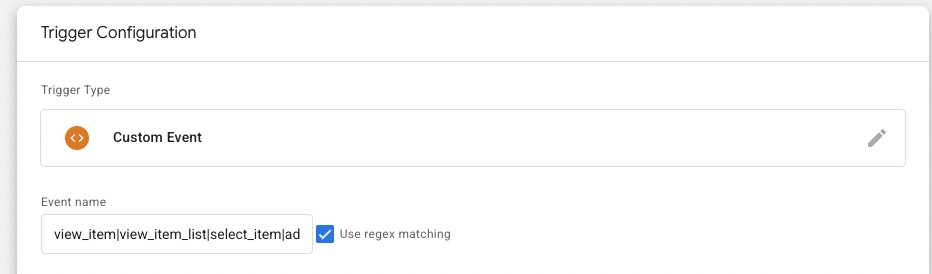
To ensure that the tag only fires for relevant events, create a user-defined trigger:
view_item (or whatever you use in your data layer)If you want to cover several events (e.g. also purchase), you can alternatively work with a regex trigger like this one. This way, the tag is sent to Google with the data from the data layer for each of these events
view_item|view_item_list|select_item|add_to_cart|remove_from_cart|view_cart|begin_checkout|add_payment_info|add_shipping_info|purchase
Before you go live, be sure to check:
Only publish the container if this is the case.
Before you run campaigns with dynamic remarketing, you should make sure that Google actually receives the necessary product data.
This can be done directly in Google Ads:
Tools → Data Manager → Google Tag →View Stats

There you will find an overview of the transferred parameters. The most important are:
id (or ecomm_prodid for older setups)value (or ecomm_totalvalue)Important: It is not only important whether the parameters are recorded, but also how often. If values such as id or items only appear for a few page views, a trigger is probably missing or the tag is not firing reliably.
This gives you a quick way to check directly in Google Ads – without debugging tools.
Before you use dynamic remarketing, you should check whether the tracking is GDPR-compliant.
Disclaimer: I am not providing legal advice here – this section is for technical guidance only.
Dynamic remarketing is based on personalized advertising – and this requires the user’s active consent. Without opt-in, the remarketing tag must not fire.
This applies in particular to
With Google Consent Mode v2, you can control whether tags are triggered – depending on whether the user has consented or not. Two important states are transferred:
ad_storage: allows or prohibits the setting of advertising cookiesad_personalization: allows or prohibits personalized advertising (e.g. remarketing)By default, both states are set to “denied”. Only when the user agrees (e.g. via your cookie banner) is it updated to “granted”.
gtag('consent', 'update', {}
'ad_storage': 'granted',
'ad_personalization': 'granted');
Google is not allowed to collect remarketing data without consent – this means
In this case, Google can only use modeled or aggregated data for conversion measurement – but this does not replace real remarketing.
Make sure that you:
This puts you on the safe side – at least technically. Everything else is best clarified with a data protection officer or lawyer.
Dynamic remarketing is not rocket science – but it stands and falls with the technology in the background. If you transfer the right product data, maintain the feed properly and set up the Google Tag Manager correctly, Google will do the rest for you.
In a nutshell, you need
Whether you later work with your own remarketing campaign or run everything via Performance Max – the setup is the basis for your ads to work.
If you get it right once, you will benefit in the long term: better ads, higher relevance, more sales. And if you have any questions or need help with the setup – feel free to get in touch.
Good luck!
Work Smart with Clicks in Mind

Hi, my name is Thimo Hofner. I have been working in online marketing as a Google Ads Manager for more than 5 years. Through many courses, trainings and most importantly working with many different clients, I have learned the best strategies for success with Google Ads. On my blog and YouTube, I share my knowledge to help you drive more success with online marketing.

Driving Your Success Through Smart Online Marketing.
As a reliable partner, I can help your company generate more customers and sales with Google Ads. After more than 5 years as a Google Ads Manager and more than $1.2 million in managed advertising budgets, I can quickly recognize where you need to make adjustments to get more out of your budget.


© 2026 Clicks in Mind